Five hats, one assistant.
Pip’s persona follows the tool in front of you. Open Code Manager and Pip puts on a hard hat. Open Dev Tools and it switches to a deerstalker. Each hat changes what Pip suggests and how it answers: the Builder audits your apps, the Detective reads your traces, the Tester fills payloads with fake data, the Captain counts the changes waiting for production. A fifth hat, Teacher, appears on help and tour screens.
Every screenshot below is from a live demo workspace: one app built through Start here, one tracing improvement applied from Activity & Improvements, and Pip doing its job in front of each tool.
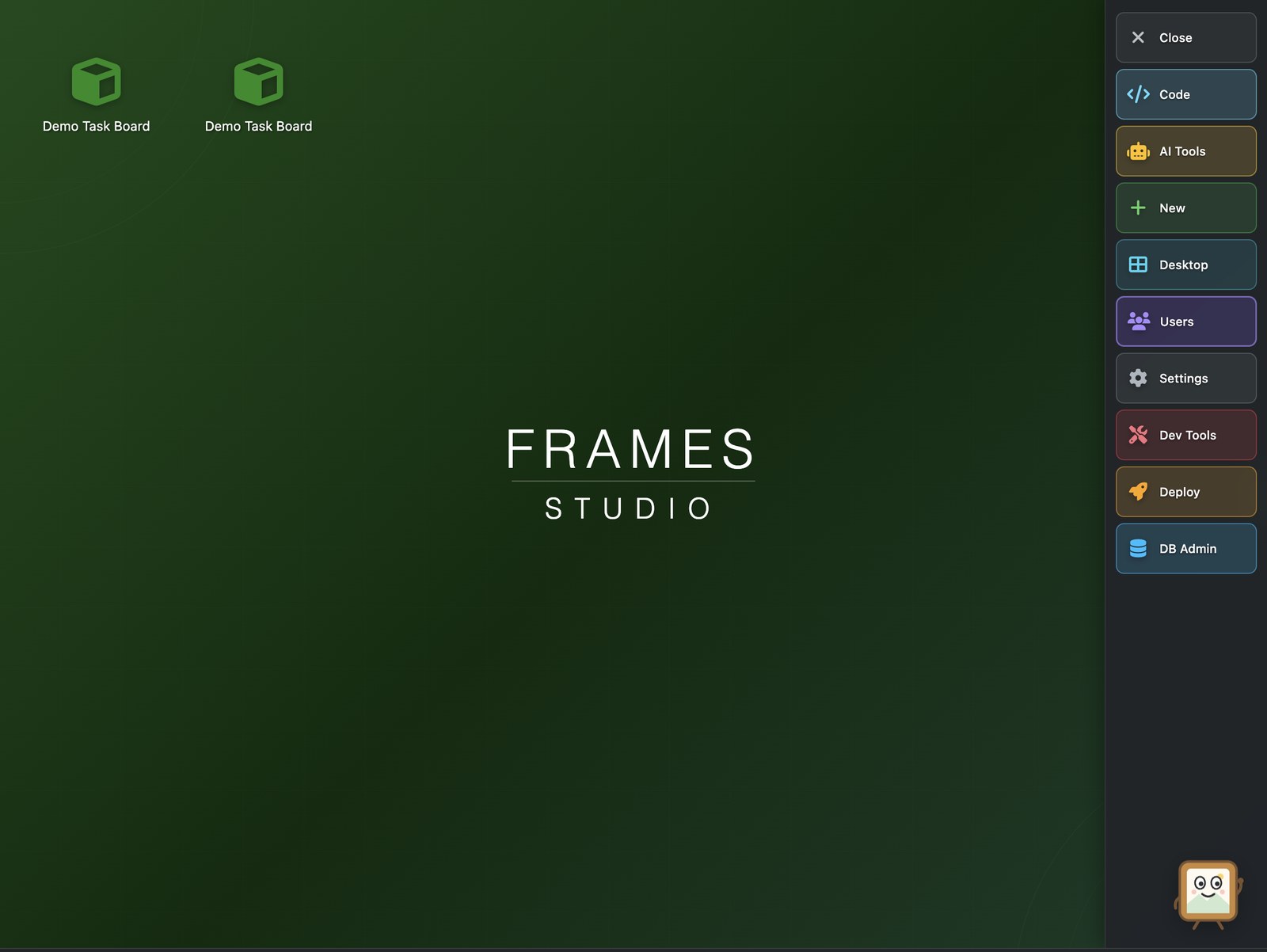
Builder — Code Manager
With Code Manager open, Pip wears a yellow hard hat and offers one useful thing built from the state of your workspace:
“Want me to check your apps for missing tracing?”
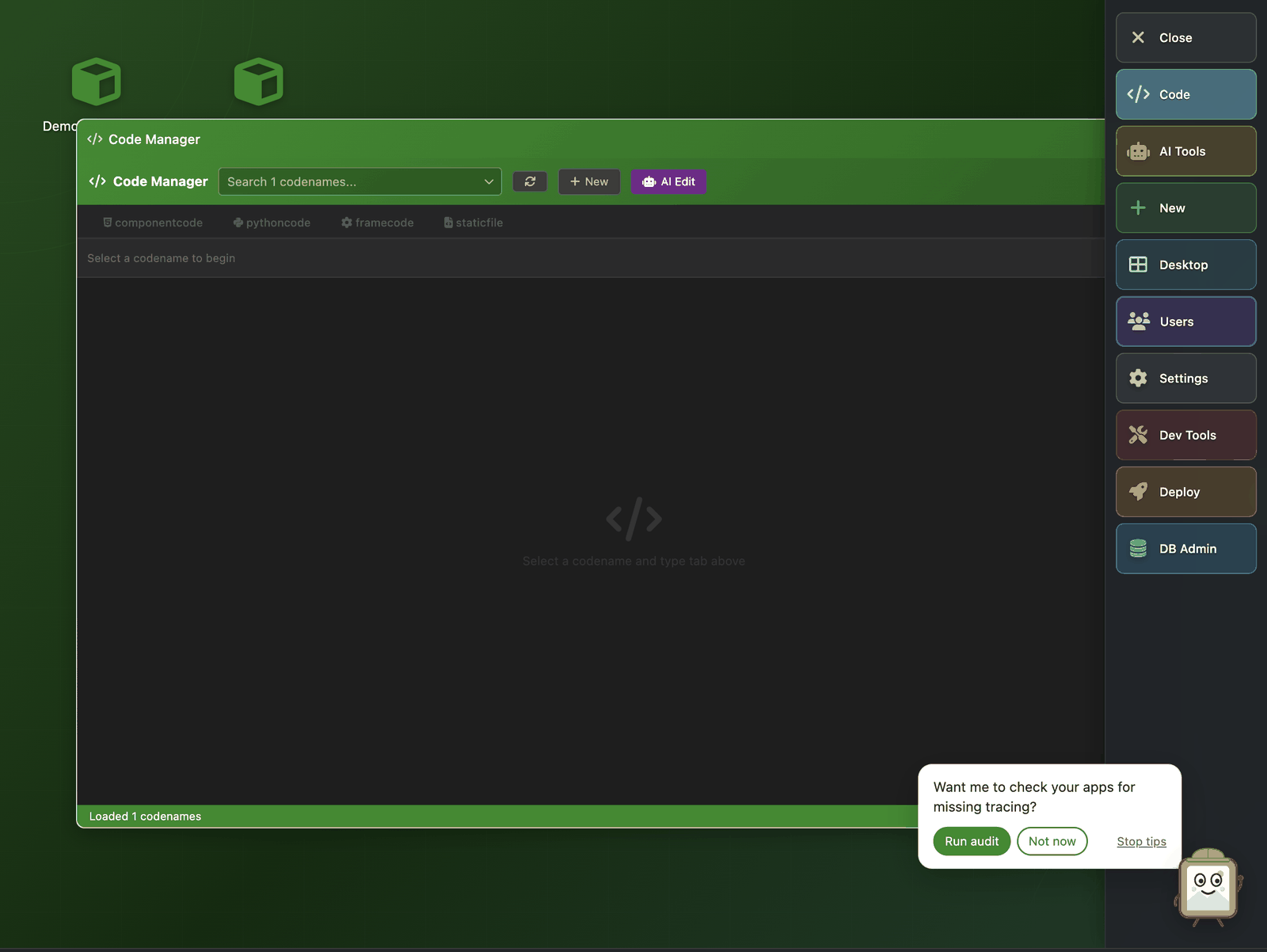
Click Run audit and it checks the workspace’s apps. Here it returned no new proposals: a tracing improvement was already waiting for review, and the audit skips what is already pending. Pip’s message did not distinguish that state:
“All your apps are already traced. Nothing to propose.”
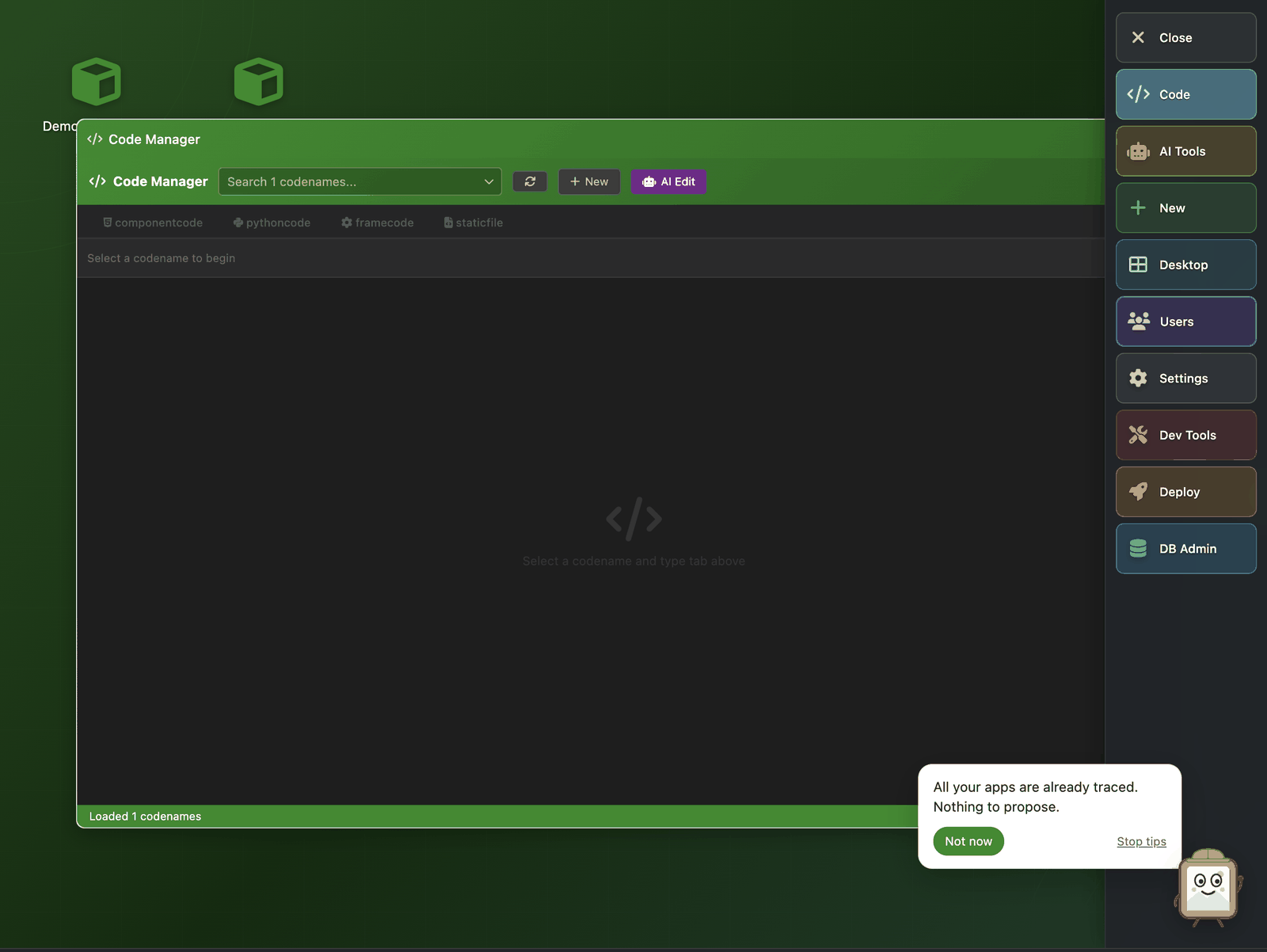
Ask Pip what it can do here and the answer is a Builder’s list — list your codenames, read any frame’s pythoncode, componentcode, framecode or schemacode, search across your code — ending with a question back to you. The panel below shows the tail of that reply:
“3. Search across your code — Find where a method, column name, or codename is used across all your components, so you can see what will break if you change something… What would help you most right now—see what you’ve built, dig into a specific app, or check where something is used?”
Detective — Dev Tools
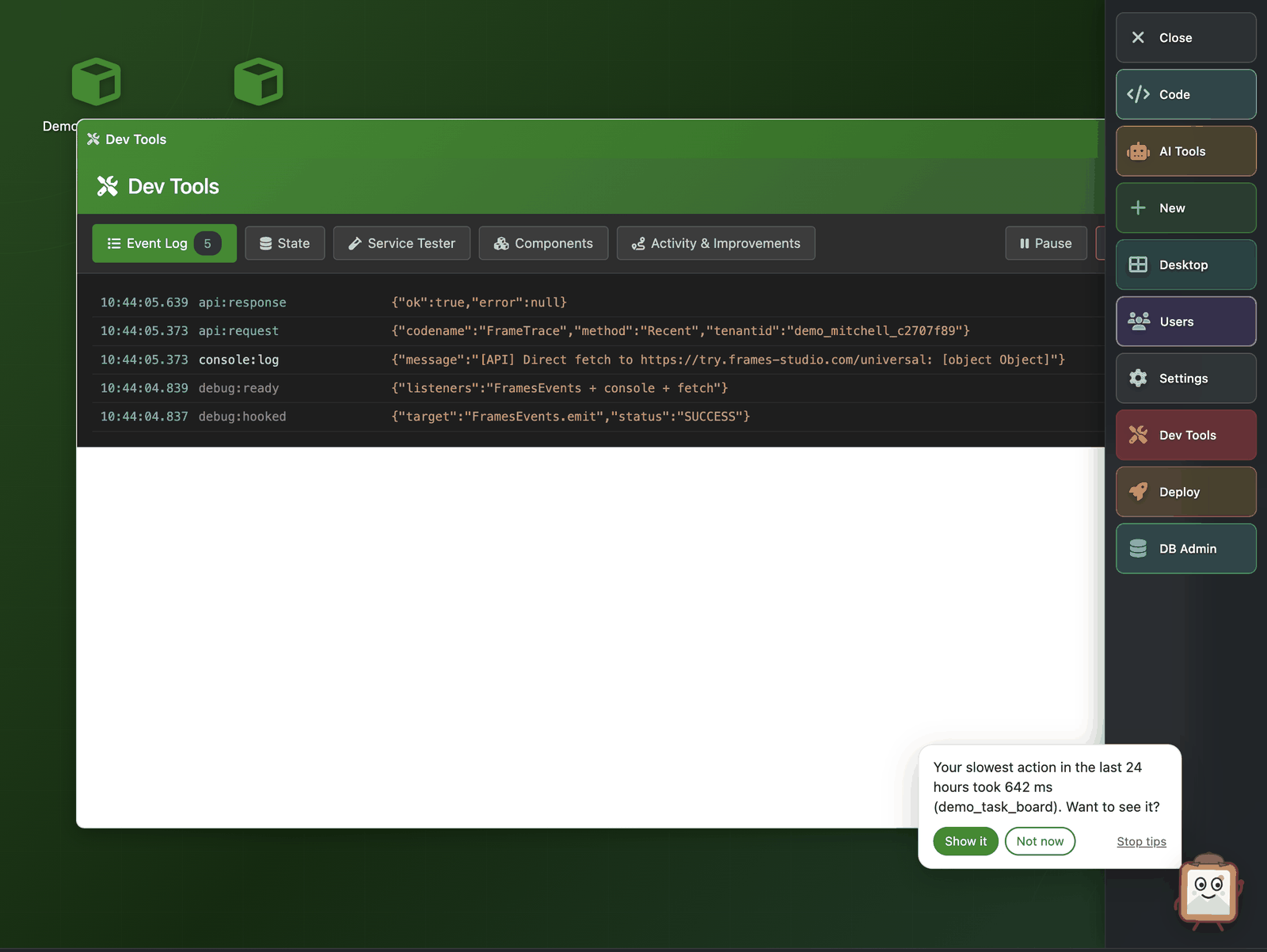
Open Dev Tools and Pip swaps the hard hat for a deerstalker. The Detective works from your traces, and its tip names the slowest recent action with its duration:
“Your slowest action in the last 24 hours took 642 ms (demo_task_board). Want to see it?”
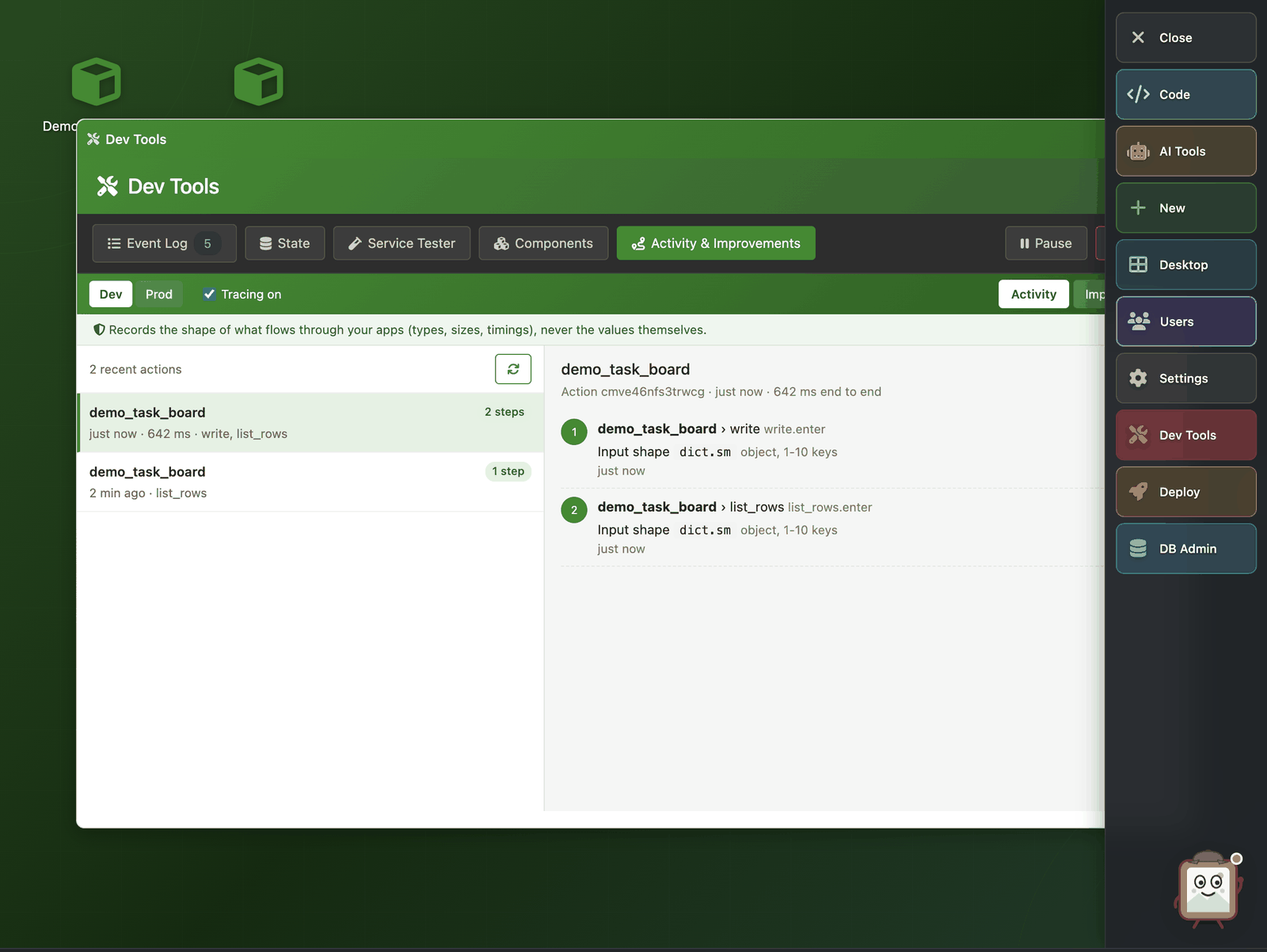
The action’s story lives in Activity & Improvements. It shows each step, the service and method that ran, and the shape of what went in:
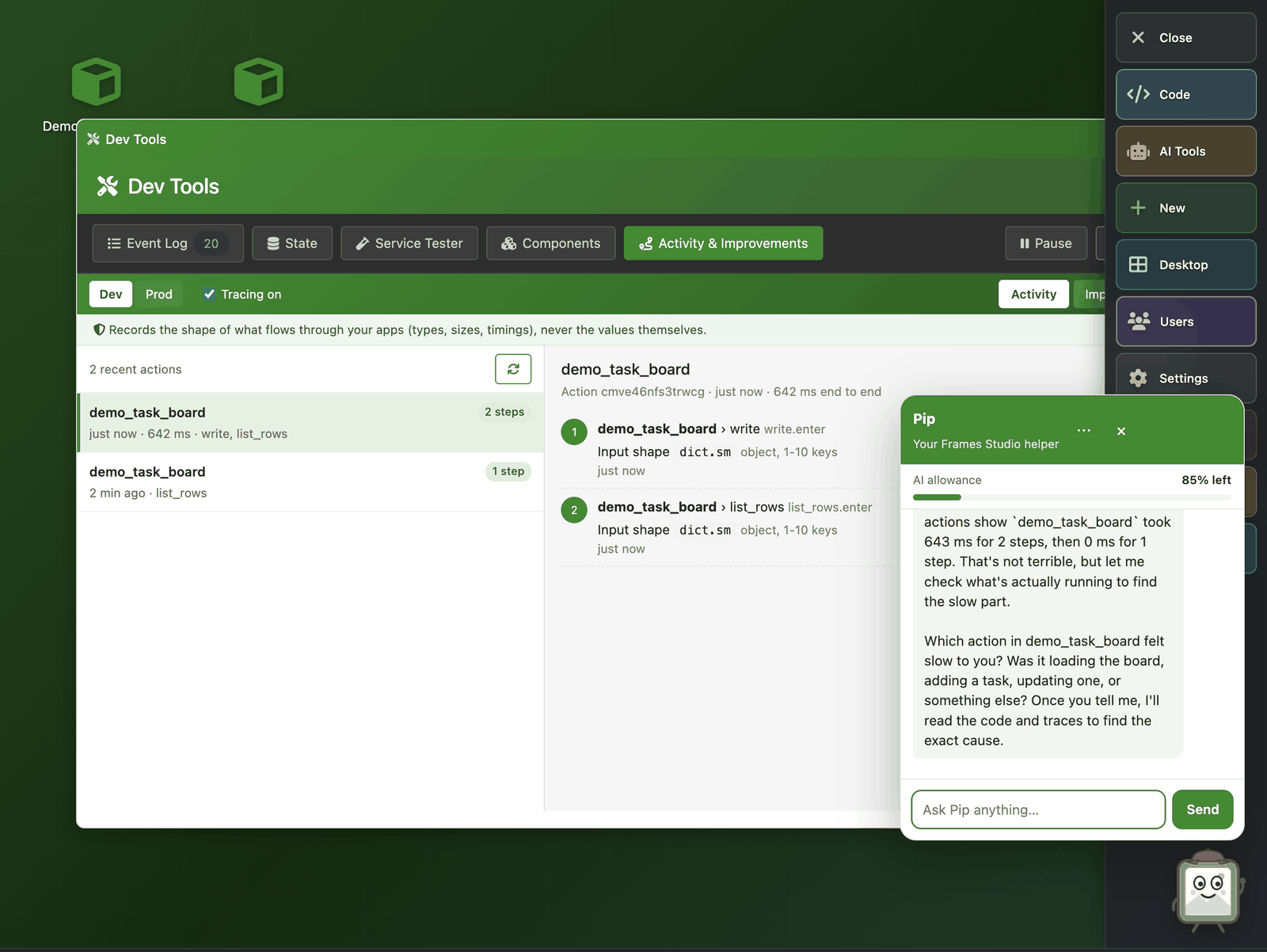
Ask “Why is that slow?” and Pip answers with the traces it just read — the panel shows the middle of that reply:
“…actions show demo_task_board took 643 ms for 2 steps, then 0 ms for 1 step. That’s not terrible, but let me check what’s actually running to find the slow part. Which action in demo_task_board felt slow to you?”
Tester — Service Tester
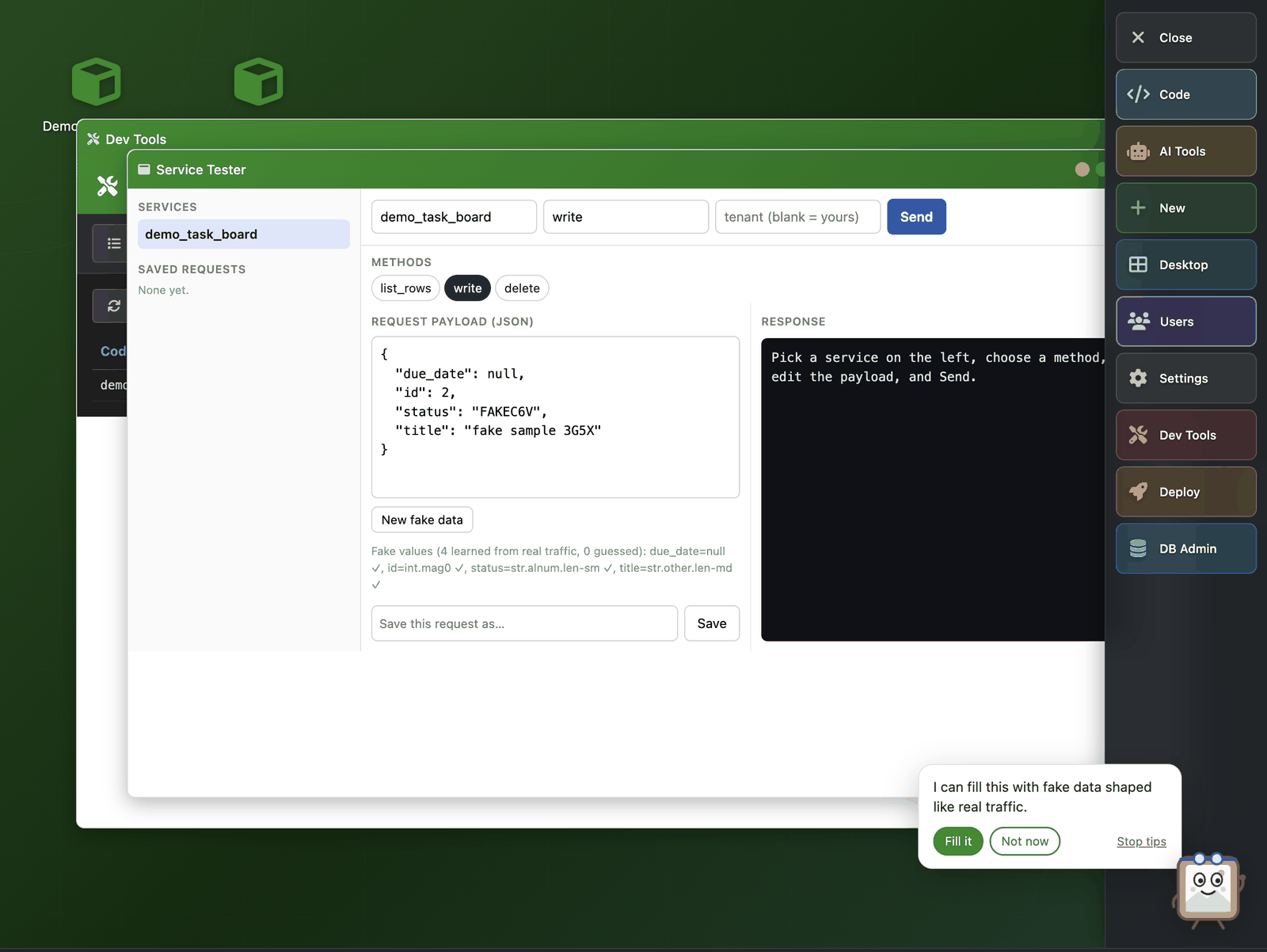
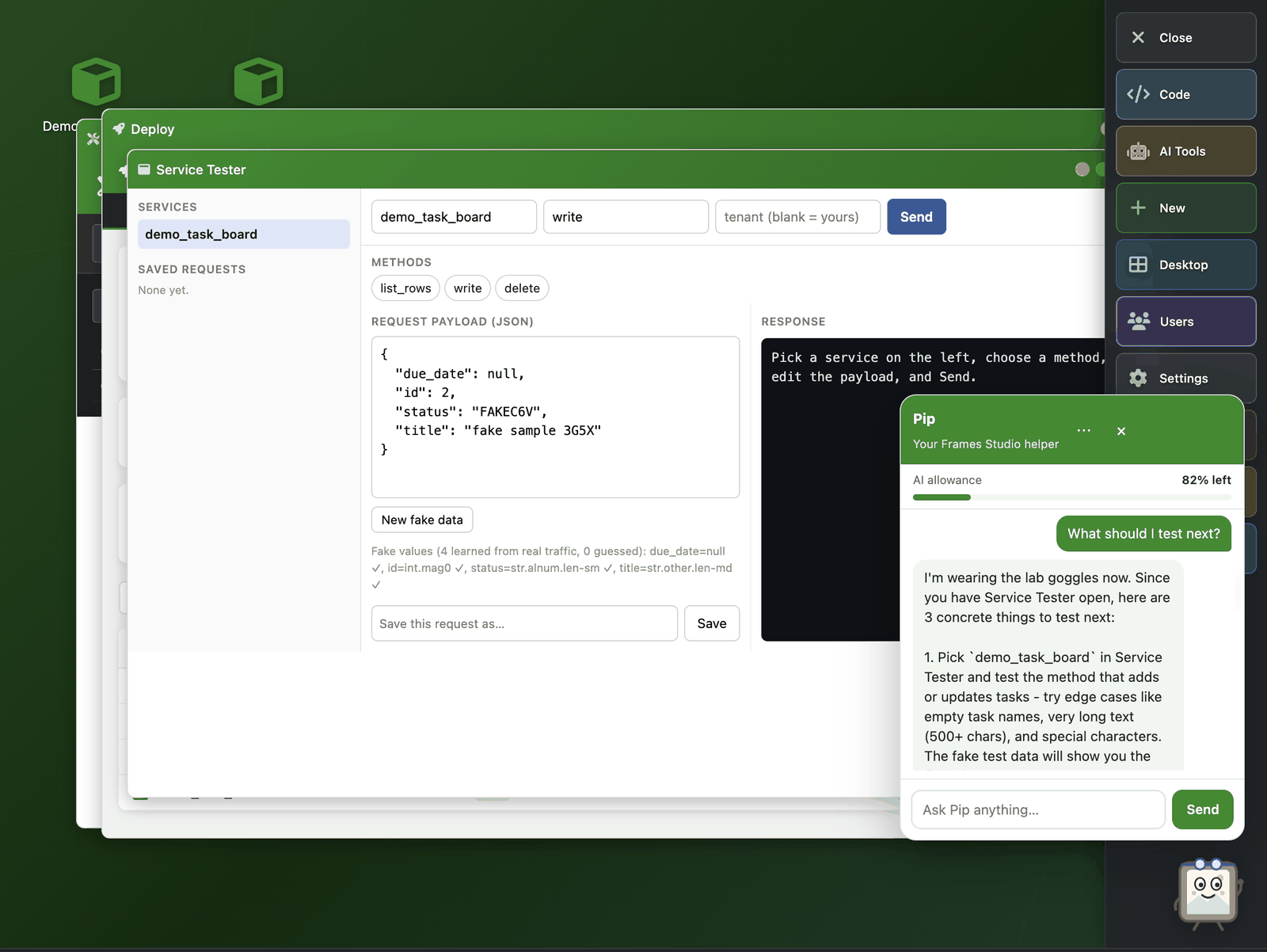
In a standalone Service Tester window, Pip wears lab goggles. The Tester’s tip:
“I can fill this with fake data shaped like real traffic.”
Ask what to test next and the answer is a concrete list for the service in front of you — the panel shows its start:
“I’m wearing the lab goggles now. Since you have Service Tester open, here are 3 concrete things to test next: 1. Pick `demo_task_board` in Service Tester and test the method that adds or updates tasks — try edge cases like empty task names, very long text (500+ chars), and special characters…”
Captain — Deploy
Open Deploy and Pip wears a captain’s cap. The Captain counts the changes waiting for production:
“4 changes are waiting to go to production.”
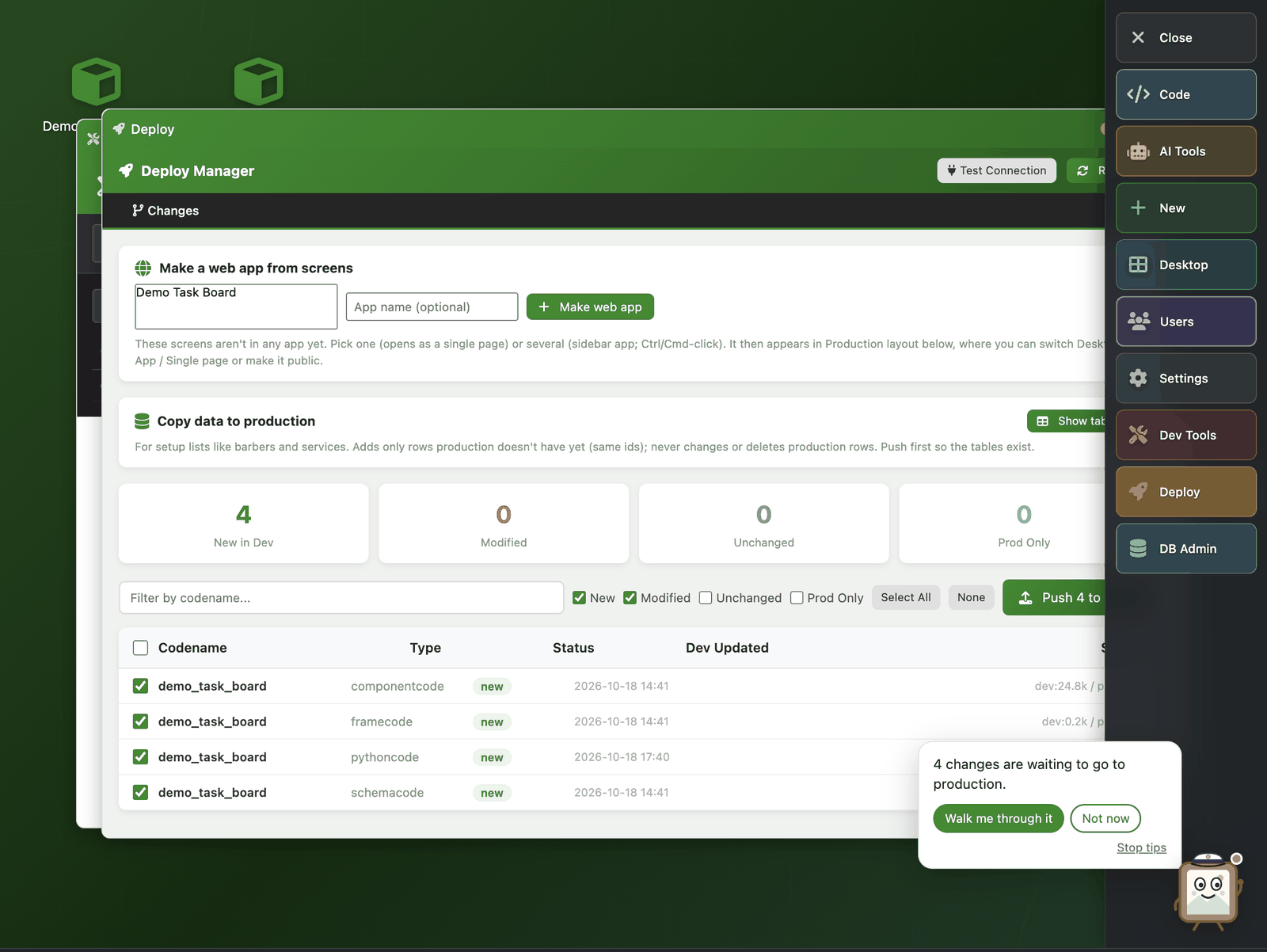
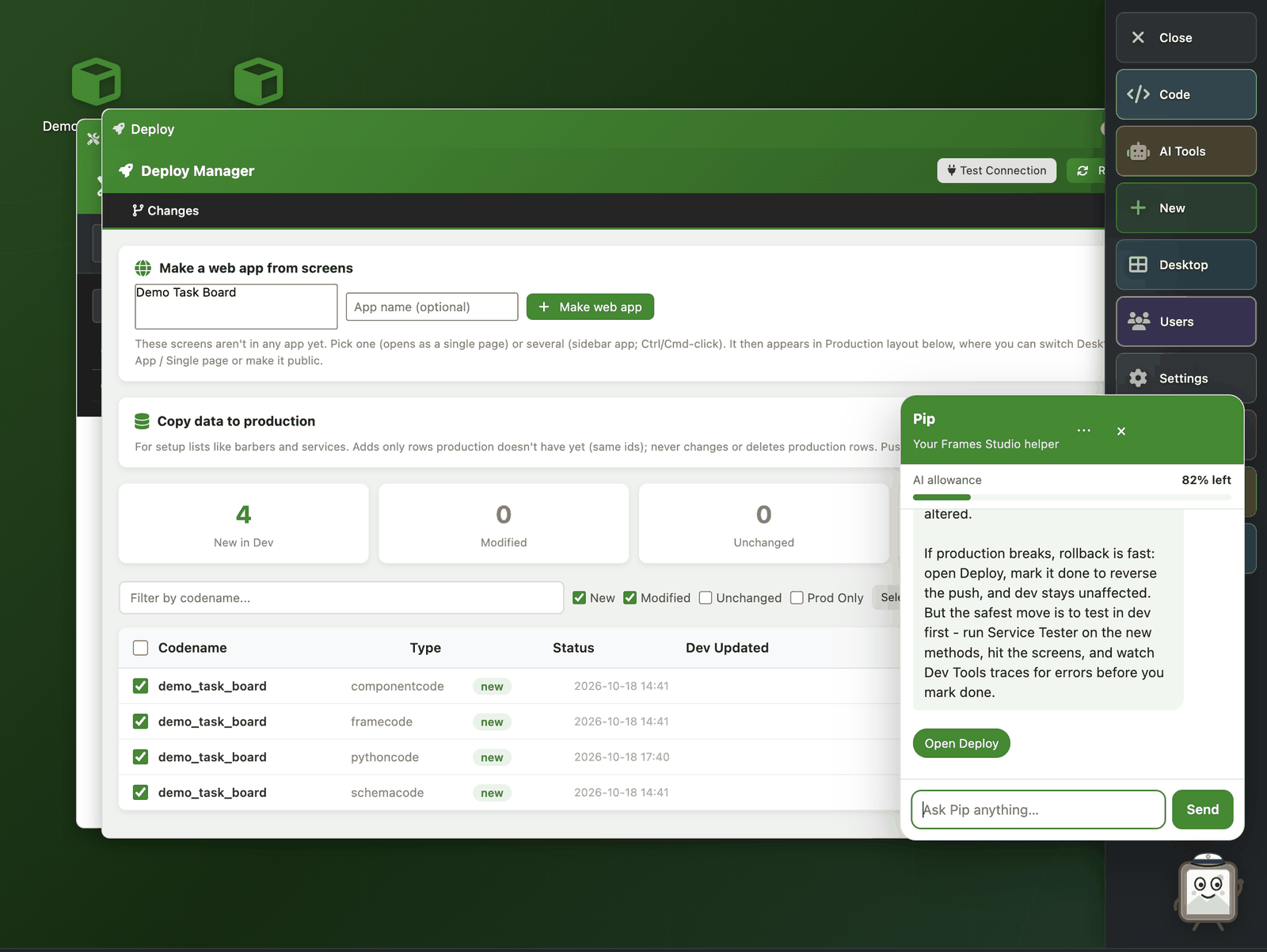
Click Walk me through it and Pip briefs you on the review and the push. The panel below shows the end of that briefing:
“…If production breaks, rollback is fast: open Deploy, mark it done to reverse the push, and dev stays unaffected. But the safest move is to test in dev first — run Service Tester on the new methods, hit the screens, and watch Dev Tools traces for errors before you mark done.”
What Pip sees.
Pip sees the shape of your data — types, sizes, timings — never the values. The Activity & Improvements panel states it in these words: “Records the shape of what flows through your apps (types, sizes, timings), never the values themselves.” The step story above shows what that looks like: a field recorded as “object, 1-10 keys,” and a task title recorded only as its shape. The Service Tester’s fake payloads are marked the same way — learned from the shape of real traffic, filled with synthetic values generated from recorded field shapes.
Where Pip works.
Pip works in the studio, on the dev side of your workspace. It never runs in production. The only path to production is Deploy, which you approve. Pip can walk you up to that decision — the decision stays yours.
Suggestions and improvements follow the same rule. When Pip’s audit finds something, the proposal waits in Activity & Improvements for your approval. Nothing is applied because Pip suggested it.